

SSO is an Enterprise feature. Please reach out to our support team, your sales contact, or via our Slack community if you need to enable Enterprise features as you try out Statsig.
Supported Providers
We support any Identity Provider (IdP) that implements the OIDC protocol for SSO. We have custom documentation for some of the following OIDC providers:- Okta
- Microsoft Entra ID (AzureAD)
- Ping Identity
- Be sure to include
openidandemailin the scopes
- Be sure to include
- OneLogin
Configuration
In your Identity Provider
You will need to specify the following for your Statsig App:- Sign-in redirect URI: https://console.statsig.com/sso/oidc (and https://latest.console.statsig.com/sso/oidc if possible)
- Sign-out redirect URI: https://console.statsig.com
- Sign-in URI: https://console.statsig.com/sso
- OIDC Domain
- Client ID
- Client Secret
In Statsig Console
Once you have obtained all of the information mentioned above:- Navigate to your Organization’s
Info Settingspage and click theEnablebutton for Single Sign-on.
An
Owner/Admin role in your Statsig organization is required to configure SSO on Statsig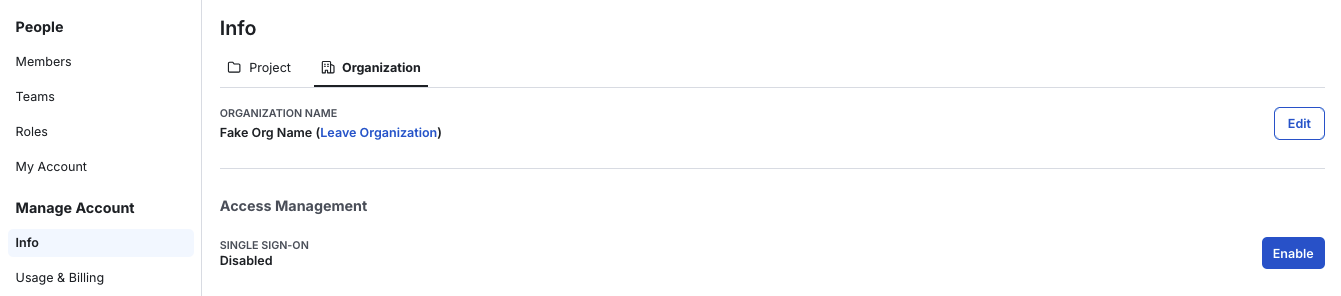
- Provide the information acquired from your OIDC Provider into the fields in the dialog and click
Enable.
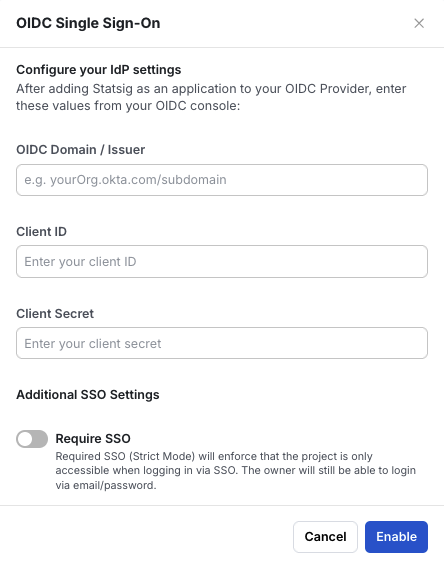
- After clicking
Enable, an SSO link will be shown that can be sent to your team to allow them to login to Statsig through your OIDC Provider.

Strict SSO will require that all members of a Project besides the Owner must log in to the Statsig Console through SSO with the configured provider to access the Project.